Media Library
The media library lets you manage your images and videos and attach them to various posts, such as programs, guides and activities.
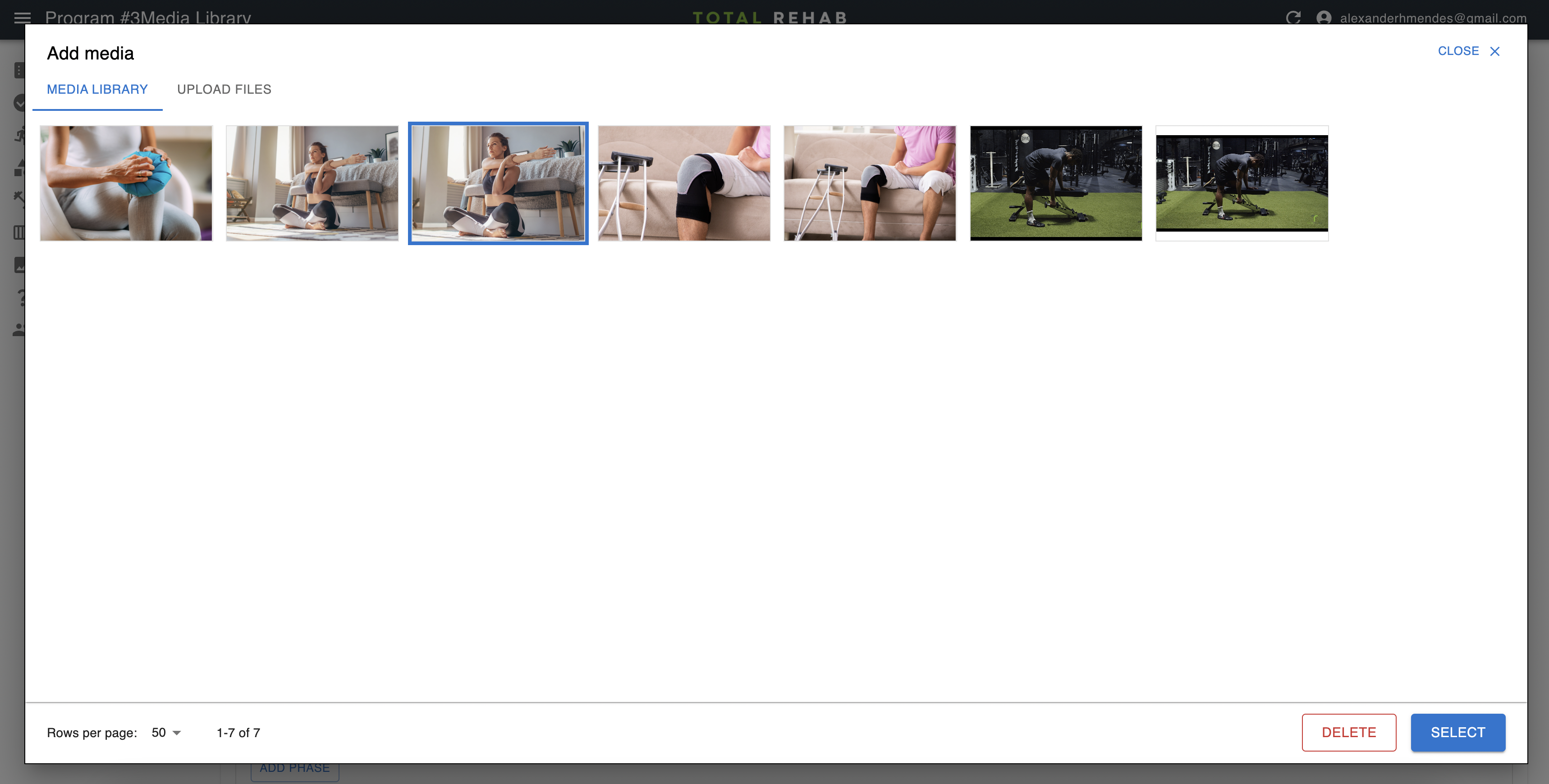
Selecting media
To select an image or video that has already been uploaded click on the item, then click the Select button.
Uploading media
To upload a new image or video click the Upload media tab and select your file. If uploading an image you will be given the opportunity to crop it before hitting the Save button.
Editing media details
If you want to edit the title of the image you can do so via the Media Library section in the sidebar. This title currently serves as the accessibilityLabel within the app, so should describe the image in at least a somewhat meaningful way.
Deleting media
To delete an image or video either visit the Media Library section in the sidebar, click through to the item, then click the Delete button. Alternatively, you can delete items via the modal when creating or editing a post.
Optimisation
We employ various techniques to optimise media files for mobile.
Images
Images are cropped and compressed in the browser, before being uploaded to Supabase storage. This means that you may see various crops of the same original image in the media library.
An alternative approach would be to store the full image data and use an image resizing service to resize images on-the-fly, which would enable even greater levels of flexibility but comes with the cost of running, or paying for such such a service.
Videos
Videos are compressed and converted to the .M38U file
format, which enables HTTP Live Streaming on Android. Effectively this means we do not need
to wait to download the entire video file to the phone before we begin playing
it.
The video optimisation runs nightly as a scheduled process. Any new videos you upload will still work but might be a little slow until this process runs.